
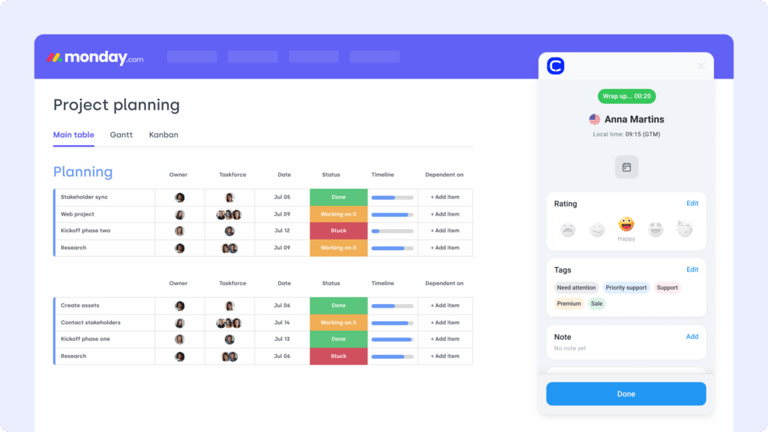
monday.com Integration for Call Center

Combine the strength of your CRM and workflow automation with CloudTalk's monday.com VoIP Integration. Automatically log calls, update records, and streamline your communication efforts without leaving your workspace.

Why Integrate monday.com with CloudTalk?
Boost your team's productivity with the monday.com Phone System Integration by CloudTalk. Automatically sync call logs, notes, and tags from CloudTalk to monday.com CRM, giving your team real-time access to conversation insights and eliminating manual updates. Data stays accurate, timelines stay on track, and workflows stay aligned.
Whether you're closing deals, managing projects, or handling follow-ups, CloudTalk's monday.com telephony integration helps your team maintain context, improve efficiency, and strengthen relationships without switching tools.
What Is monday.com?
monday.com is a customizable CRM and work management platform that helps teams manage contacts, track pipelines, and automate processes, all within a shared workspace.
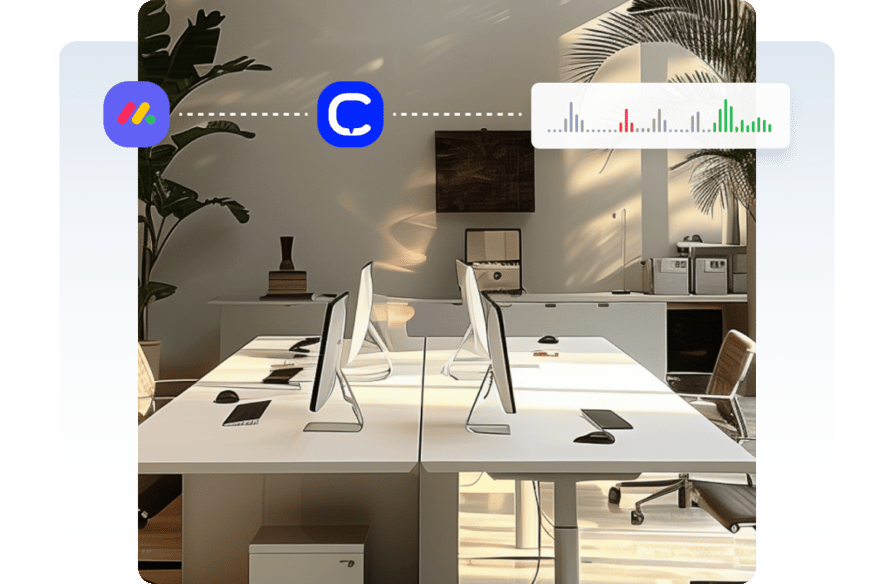
What Data Do monday.com & CloudTalk Share?
monday.com CloudTalk
CloudTalk Processes
monday.com & CloudTalk Exchange
monday.com Receives
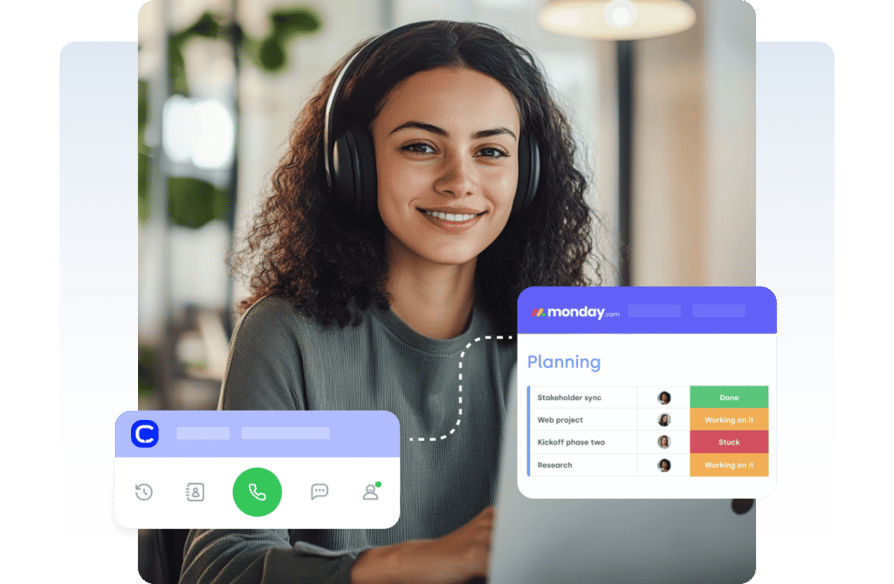
How to Integrate monday.com with CloudTalk
- Ensure you have a CloudTalk Essential plan and admin access for both CloudTalk and monday.com.
- Log into your CloudTalk Dashboard and navigate to Account → Integrations.
- Search for monday.com in the integration list and click on it.
- Click Connect monday.com — you’ll be redirected to monday’s login page.
- Sign in and authorize CloudTalk access. After successful authentication, you’ll return to CloudTalk.
- On the Integration Configuration screen, set a custom Caption to identify this integration.
- Click Save to finalize the setup.
- Install monday.com recipes to define how data syncs between the two tools:
- In monday.com, go to the workspace and board you want to connect.
- Navigate to Integrations → More Integrations.
- Search for CloudTalk, and select the CloudTalk – Log Call app. - Click Save to finalize the setup.
- Install monday.com automations to define how data syncs between the two tools.
Tip: We recommend installing all available recipes for full functionality.
What Do Our World-Class Customers Say?
Customer focus is a foundational pillar for everything we do. Whether you're helping your clients, or reaching out to close a deal, we help ensure you have all the tools and support you need to succeed. But don't take it from us. Here's what CloudTalk's happy customers have to say!
I love the smart dialer as it removes procrastination from cold calling business development time. I also recently trialled the AI notetaker and will be purchasing that as it removes the need to write notes manually. It was very accurate as well!
Co-Founder
We needed the lines for our business with a lot of urgency and the team resolved it for us in just one business day. Everything was integrated and set up immediately, ready for our team to deliver support right away.
Project Manager
Easy to use. I love that support quickly and clearly helped me understand the more difficult mechanisms. The integration via API with our inhousing application also allowed for automations like SMS reminders.
Customer Support Specialist
It's simple to use, has a clean interface, and offers many options for using numbers from many parts of the world. It's also a great tool to use for opening accounts on messaging platforms like WhatsApp and Telegram.
Revenue System Specialist
The calling dashboard and the reporting structure is flawless as it supports campaign-wise reporting as well. We can allocate caller IDs to ISDRs, making it easier to use them whenever required in real-time...
Senior Manager
For us the main upside of using CloudTalk is saving of contacts. We're a business thousands of people contact, so seeing who's calling prior to taking the calls is a big boost. It also has detailed analytics for tracking.
Account Manager
How to Set Up Calling in monday.com
- Complete the CloudTalk–monday.com integration and install the necessary automation recipes.
- Make sure you’ve assigned CloudTalk numbers for outbound calls.
- Open a Contact or Lead record in your connected monday board.
- Click on the phone number, the CloudTalk Phone app will launch automatically.
- The number will be pre-filled and ready to dial.
- Once the call ends, CloudTalk will automatically log: call direction and duration, caller and receiver info, call outcome, tags, notes, and agent name, and a link to the recording (if enabled).
monday.com Phone Integration Benefits

Automatic Call Logging
CloudTalk logs each completed call into monday.com CRM with full details, matching existing contacts by number or creating new ones. Teams gain real-time visibility into conversations without lifting a finger, improving sales and service workflows.

One-Click Contact Import
Effortlessly import leads and customer records from monday.com CRM into CloudTalk. Ensure agents can call and text the right people with full context from day one, no exports, CSVs, or switching tabs required.

Seamless Tag Syncing
Call tags applied in CloudTalk are instantly synced with monday.com CRM timelines, ensuring every contact is accurately categorized. Teams can filter by tag or priority, making outreach planning easier and responses more precise.

Note Sync in Real Time
When agents add or update call notes in CloudTalk, those changes reflect immediately in the corresponding monday.com CRM activity. This keeps conversation history aligned and accessible across both platforms, boosting team collaboration and clarity.
An Overview of monday.com Integration and CloudTalk
Make Smarter Calls with Conversational Intelligence
Remove the guesswork and rage-inducing repetition from your operations with Automatic Call Recording and Transcription. Gain clarity for all your calls with Topic Extraction and Sentiment Analysis and coach agents with actionable insights.

Enter 160+ International Markets Instantly
Go global and expand your company’s reach with one of the largest offers of international, local, and toll-free numbers available on the market today. Scale your call center solution alongside your strategies and ensure your success for years to come.

Sell, Support, Satisfy Customers & Succeed
Put the people at the center of everything you do with call center features designed to turn customer success into your greatest competitive advantage. Decrease wait times by <80% and increase your outbound success rate by <250% the easy way.
What real users are saying
The inside scoop from actual CloudTalk customers.

From 20-Minute Waits to 3-Minute Service
“With CloudTalk, we dropped our missed calls from 80% to 16% and cut wait times by over 85%, while scaling from 2 to 20+ agents.”

40% Lift in Call Connections
“With CloudTalk, our pre-sales team stopped wasting time on dropped calls and started having more of the right ones.”

20% More Efficient Call Handling
“We replaced personal phones and manual processes with a scalable VoIP solution and saw a 20% jump in team productivity.”

40% Fewer Missed Calls
“We replaced personal phones and manual processes with a scalable VoIP solution and saw a 20% jump in team productivity.”

From 3 Phone Systems to One Source of Truth
“Before CloudTalk, our data was scattered. Now, everything lives in HubSpot — connected, visible, and fully unified.”

66% More Capacity Without Hiring
“CloudTalk made it easy to scale support fast: we cut handle time by 33% and now handle 66% more calls per agent.”

Your CRM shouldn't be the last to know about a call. See how CloudTalk fits into monday.com.
Join thousands of teams already growing with CloudTalk.
Frequently asked questions
A monday.com integration connects your CRM with tools like CloudTalk for seamless workflow automation and enhanced communication tracking.
monday.com integrates with tools across sales, support, and marketing. monday API integration and calling tools are among the best monday integrations.
With the monday phone integration, you can launch calls using CloudTalk and sync communication data directly into your monday.com CRM workspace.
Yes, monday API integration allows developers to connect apps like CloudTalk for CTI features, custom workflows, and CRM automation.
Setting up the monday.com CTI integration takes just minutes. Connect your account through the CloudTalk dashboard with no code needed, and get full sync of call data and contacts once the automation is installed.
The integration itself has no separate fee, but it does require a CloudTalk Essential plan or higher.
The monday.com calling integration syncs contact records, logs calls as activities, and updates tags and notes in real time, giving full CRM visibility.


Hello 👋 My name is Emma. Still have questions?
Can’t find the answer you’re looking for? Please chat to our friendly team.