How to Use a Softphone: The Complete 2026 Guide for Desktop Calling
If you’re thinking about switching to a softphone for your business, this guide will walk you through everything you need to know—from what it is, to the best software, to how to set up a softphone on your computer.
TL;DR:
A softphone turns your computer into a fully functional business phone. Download the app, sign in, choose your headset/mic, and start calling through the keypad or contact list. You get call controls, transfers, recordings, analytics, and easy integrations without needing a desk phone.
What Is a Desktop Softphone and How Does It Work?
A softphone is a software-based phone that lets you make and receive calls over the internet (VoIP) using a device you already own—like a computer, laptop, tablet, or smartphone. Instead of a physical desk phone, you get an on-screen dialer inside a desktop softphone app that works just like traditional softphone software or softphone services.
What a Softphone Does
A good softphone or softphone system lets you:
-
Call any phone number from your computer
-
Receive inbound calls using your business number
-
Use call controls (mute, hold, transfer, record, etc.)
-
See team presence and availability
-
Send internal messages or use built-in chat
-
Sync with your CRM or helpdesk
-
Access call history, voicemail, and analytics
Use it as a softphone for PC or laptop for flexible work
How Softphone Software Works
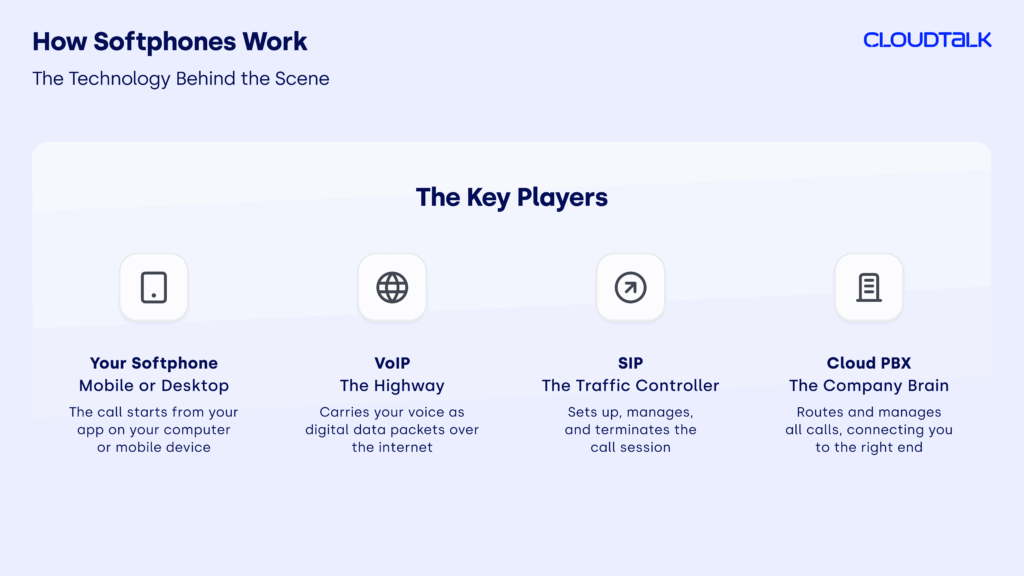
Softphones use VoIP (Voice over Internet Protocol), meaning calls travel through your internet connection instead of a phone line. All you need is:
-
A softphone app for desktop calling
-
A VoIP provider
-
A headset or built-in mic/speakers
-
An internet connection

Start Calling from Your Computer in Minutes
How to Install a Softphone App on Your Computer

For complete technical instructions on how to install a softphone, check out our tutorial. Otherwise, here’s the gist of it:
-
01
Choose Your Plan

-
01
Create Your Account

-
01
Download the App
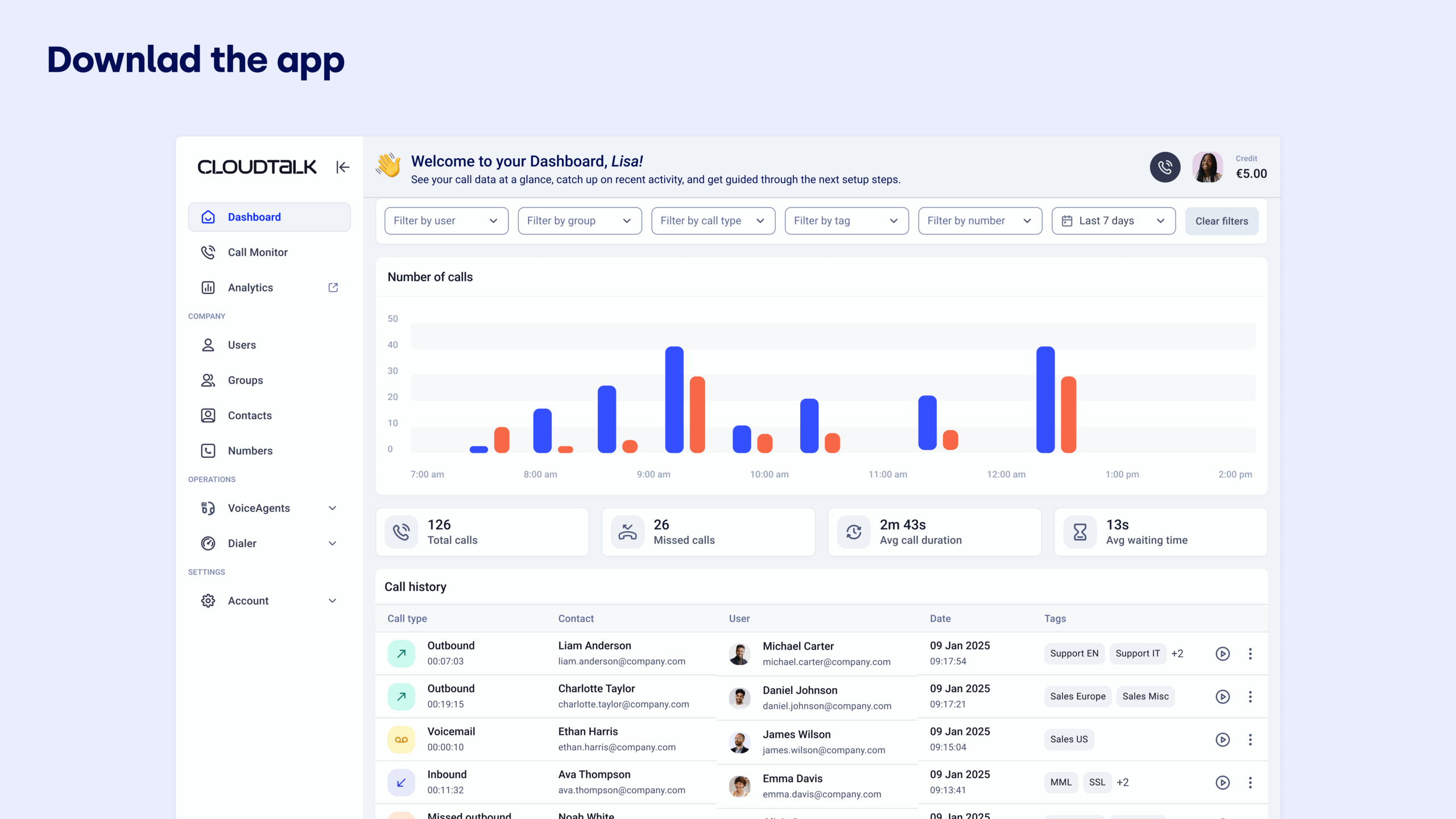
How to Use a Softphone on Your Computer: Step-by-Step Guide
Before you start making calls, make sure your softphone is installed, your audio is configured, and you’re signed in. Below is a simple, CloudTalk-specific walkthrough you can follow on any desktop device.
Before You Begin: Set Up Your Softphone
Step 1: Open the CloudTalk Phone app
Launch the desktop app, or open it from your CloudTalk Dashboard by clicking the phone icon in the top-left corner.
Step 2: Sign in
Enter your email and password to access your account.
Step 3: Allow microphone access
When prompted, grant microphone permissions so the app can capture your audio.
Step 4: Select your audio devices
Go to Settings → Microphone & Speakers, then choose your headset and microphone.
Run a quick test call to confirm everything sounds right.
Step 5: Enable notifications
Turn on desktop notifications so you never miss an inbound call.
Making Calls
Step 6: Open the dialer
Click the Keyboard/Dialer icon to bring up the number pad.
Step 7: Choose your outbound number (if available)
If you manage multiple numbers, select the one you want to call from.
Step 8: Enter or select a number
You can:
-
Type a number manually
-
Pick a contact from your list
-
Choose a recent call from your history
Step 9: Start the call
Click the phone icon to place the call.
During a Call
Use your call controls
Most softphones — including CloudTalk — give you one-click in-call controls like:
-
Mute
-
Hold
-
Transfer (warm or blind)
-
Add call
-
Keypad
-
Record (depending on your plan)
End the call + add notes
Hang up when you’re done, then add tags or notes to log context for your team.
Other Tools You’ll Use
Check call history
View all inbound, outbound, and missed calls.
Access recordings, notes, and tags directly from this screen.
Manage contacts
Open the Contacts tab to view company contacts, check previous interactions, or start a call.
Make Your First Desktop Call in Seconds
Essential Desktop Softphone Features
When you switch to a desktop softphone on your computer, you get far more than just basic calling. These are the core features—and benefits—that make softphones such a powerful choice for business communication:
-
Get a second phone number without a SIMSoftphone software lets you use one or multiple business numbers directly from your computer—no physical SIM needed. That means you can call clients with a local number in their country, while keeping your personal and business lines separate. This flexibility helps teams maintain privacy and professional presence.
-
Portability and remote accessBecause a softphone runs on your desktop or laptop (or even mobile), you can make or receive calls from anywhere with internet. Your office number isn’t tied to a desk—ideal for remote work, hybrid teams, or traveling staff.
-
Call forwarding, hold, transfer, and easy call controlLike a traditional business phone—and more—most softphone systems support call forwarding, hold, transfer, and even call-pulling between devices if supported. That ensures you never miss a client call, even if you move between devices or locations.
-
Click-to-call & CRM / tools integration (click-to-call, connect your tools)Many softphones let you dial numbers directly from your contact list or CRM with one click. This “click-to-call” capability saves time, reduces dialing errors, and streamlines workflows—especially when integrated with tools like CRM or ticketing systems.
-
Voicemail, call logs & detailed call historySoftphone services often include voicemail (or visual voicemail), and log all calls—missed, inbound, outbound. You can access detailed call history, listen to recordings (if enabled), add notes or tags, and track performance over time. This is crucial for sales, support teams, and quality control.
-
Team presence, shared contacts & collaboration toolsMany softphone systems provide presence indicators (who’s online, busy or offline), shared contact directories, internal chat or messaging, and call-management tools that mirror a full business phone system—but in software form. That makes team collaboration and call routing much easier.
Start Calling Smarter in Minutes
The Best Computer Softphone Apps for Business in 2025
Here are the 5 best softphones for small businesses in 2025:
-
CloudTalk – Best Cloud Phone System for Small Businesses for AI-Powered Call Intelligence
CloudTalk delivers top-tier call quality, global numbers in 160+ countries, and 35+ integrations. With advanced analytics, skill-based routing, sales dialers, and a visual call flow designer, it’s the smartest choice for SMB sales and support teams.
-
RingCentral – Best for All-in-One Business Communications
RingCentral’s UCaaS platform brings voice, video, SMS, chat, and social channels together in one place. With strong analytics, AI-powered sales intelligence, and enterprise-grade call management, it’s ideal for teams that want everything under one roof.
-
Nextiva – Best for Customer Service Teams Needing CRM Tools
Nextiva’s strength lies in omnichannel communication and built-in CRM capabilities. With advanced IVR, voicemail transcription, and cross-team collaboration tools, it’s great for customer service teams that need integrated workflows.
-
Dialpad – Best for AI-Powered Collaboration and Budget Efficiency
Dialpad offers real-time AI transcription, sentiment analysis, and strong collaboration features at an affordable price. It’s perfect for SMBs that want lightweight, AI-optimized communication without enterprise-level complexity.
-
Aircall – Best for CRM-Centric Sales & Support Teams
Aircall shines with CRM-friendly features like IVR, call queueing, power dialing, and voicemail drop. With deep integrations for Salesforce, HubSpot, and Zendesk, it’s a top pick for sales and support teams that rely heavily on their CRM.
Ready to See What a Modern Softphone Can Do?
How to Choose the Right Computer Softphone for Your Business
Choosing the right softphone comes down to a few simple factors:
1. Your Business Size
Smaller teams may only need basic calling and voicemail, while growing or multi-team businesses benefit from features like call routing, analytics, and scalability. Make sure the softphone can grow with you.
2. Budget & Pricing Structure
Look beyond the monthly fee. Some tools charge extra for essentials like call recording, analytics, or integrations. Pick a provider with transparent pricing so you don’t get locked into costly add-ons.
3. Inbound vs. Outbound Calling Needs
If you’re mostly outbound, look for dialers, CRM syncing, and automated logging.
Inbound-heavy teams need IVR, call queues, and smart routing.
If you do both, choose a balanced solution with strong reporting so you can track performance across all channels.
4. Features That Actually Matter
Don’t get distracted by long feature lists. Focus on what your team will use daily: call recording, analytics, AI summaries, SMS/WhatsApp, HD voice, and real-time monitoring. A clean, intuitive interface also makes adoption easier.
5. Compatibility With Your Tools & Devices
Your softphone should work across the devices your team already uses and plug into your CRM or helpdesk without extra work. Integrations save hours each week by automating call logging and syncing contacts.
Make the Switch to a Better Softphone
Softphones make business communication simpler, more flexible, and far more secure. Beyond letting you stay connected from anywhere, they also give you stronger privacy control by keeping personal and business calls completely separate—all without relying on multiple devices or phone plans.
If you’re ready to upgrade how your team communicates, try CloudTalk’s softphone and experience clearer calls, smarter workflows, and seamless setup.
Want a Personalized Walkthrough?