
Call Center Wallboard Software
A wallboard puts your live call metrics on a screen the whole floor can see. Service level, calls waiting, longest hold, agents available, updating as the calls come in.
Run it on a TV on the wall, a spare monitor, or a browser tab on a supervisor's second screen. Filter the board by call direction, group, agent and time frame.
 SOC2 CompliantISO 27001
Trusted by 30,000+ sales & support professionals to power more & better conversations
















What Does a Wallboard Show?
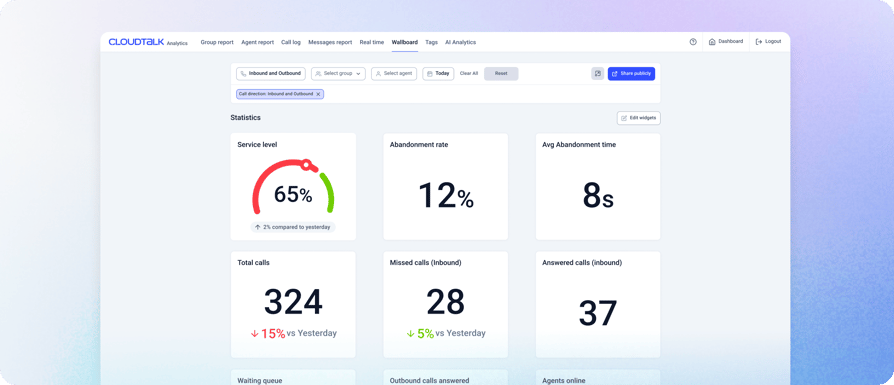
CloudTalk Wallboard Dashboard
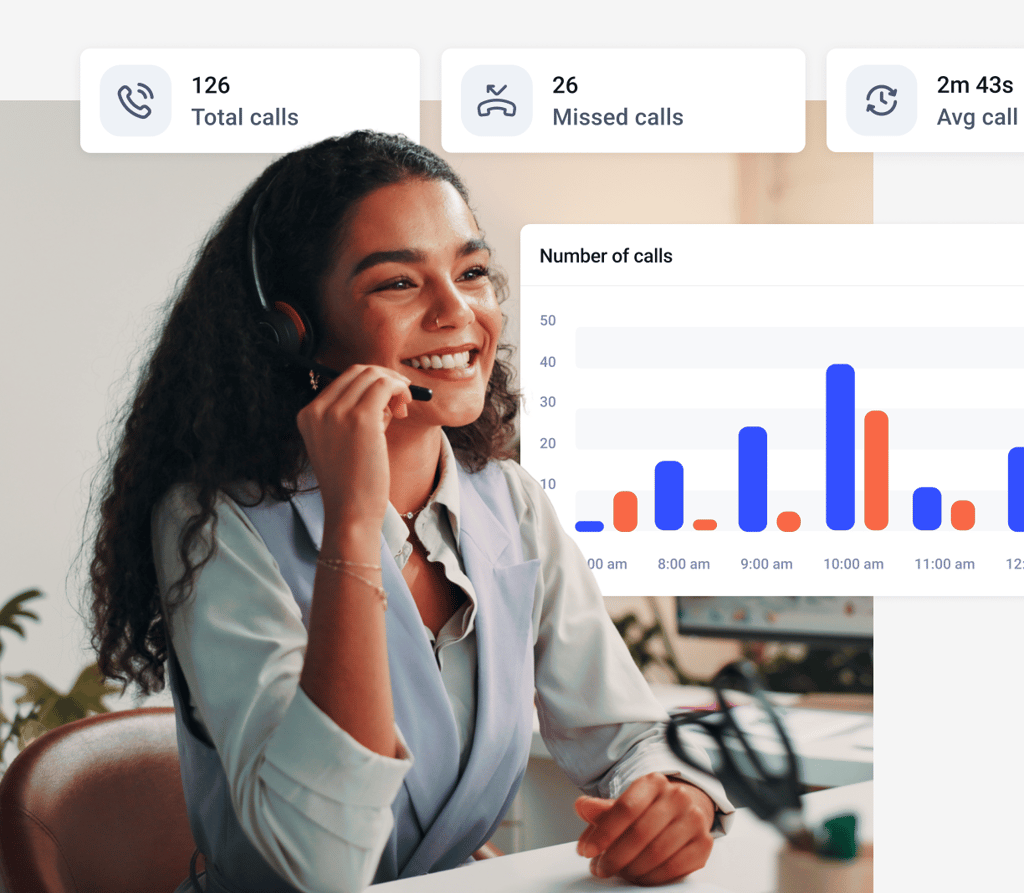
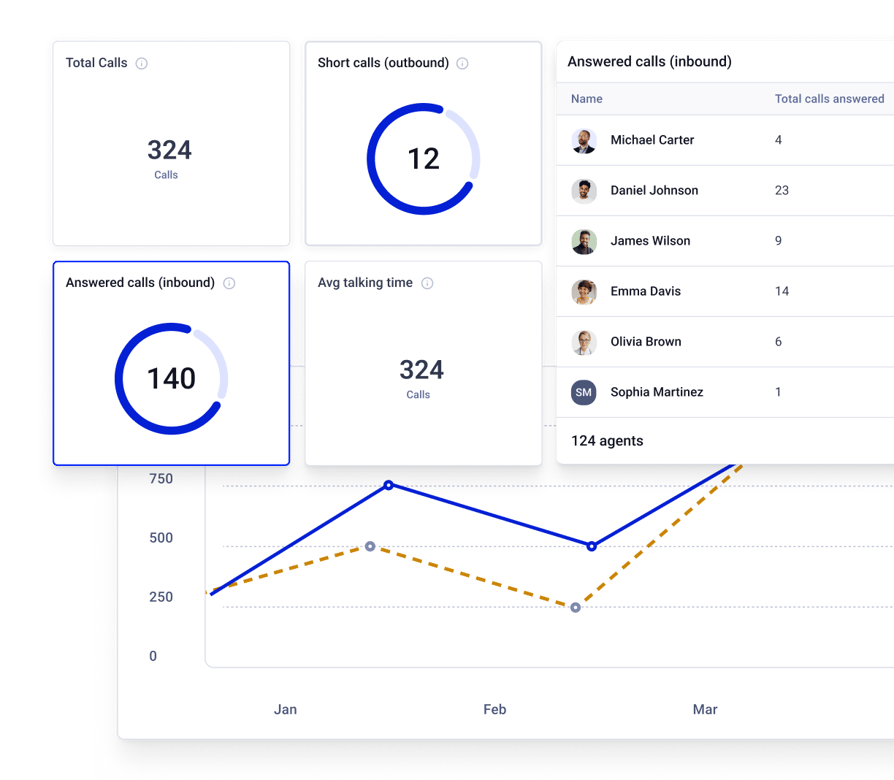
Service level, abandonment rate, total calls, missed and answered calls, queue and agents online, compared with yesterday, on one board.
See The Data You Need
Share It Outside CloudTalk
Generate a public link so a client, an outsourced team or an exec who does not have a seat can watch the same live board. Lock it to specific IP addresses, and regenerate the link whenever you want to cut access.
Set Custom Time Windows
Display live metrics or key performance indicators for the last 5, 15, 30, or 60 minutes.
Put It on the Wall in Minutes
Open the wallboard in a browser on any TV or spare monitor and leave it running. No extra hardware, no separate display licence, nothing to install.
What is a Wallboard?
A wallboard is a full-screen, live view of your call center's key metrics and call activity, built to be left running on a shared screen. Supervisors see queues and missed calls as they build up, and agents see the same numbers their team is measured on.
It’s designed to keep everyone on the same page—agents stay motivated, supervisors spot issues quickly, and managers make faster decisions.
Why Do You Need a Wallboard?
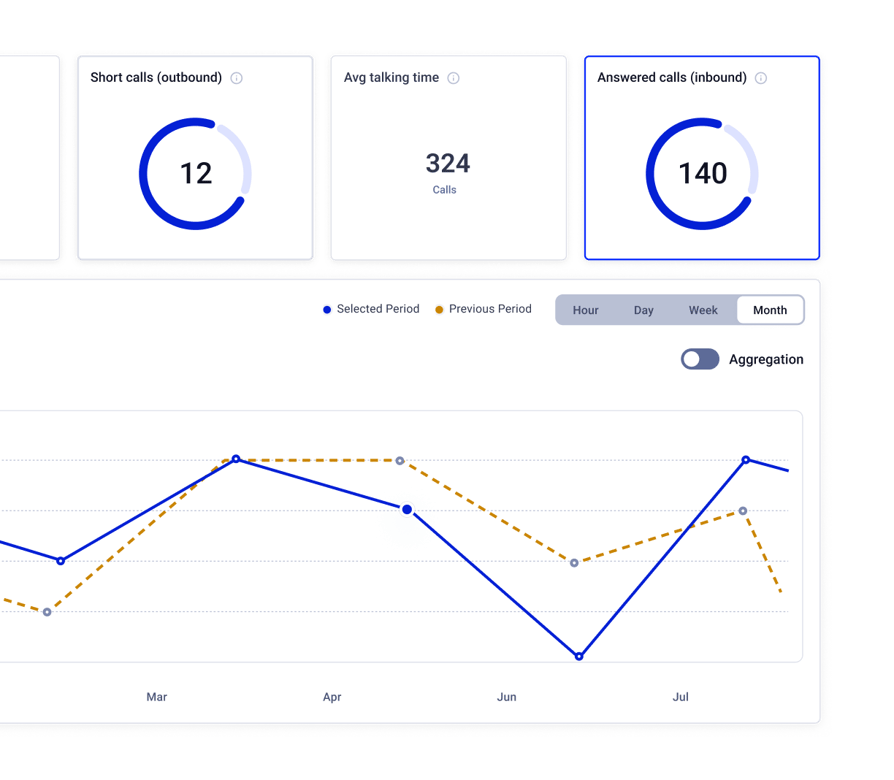
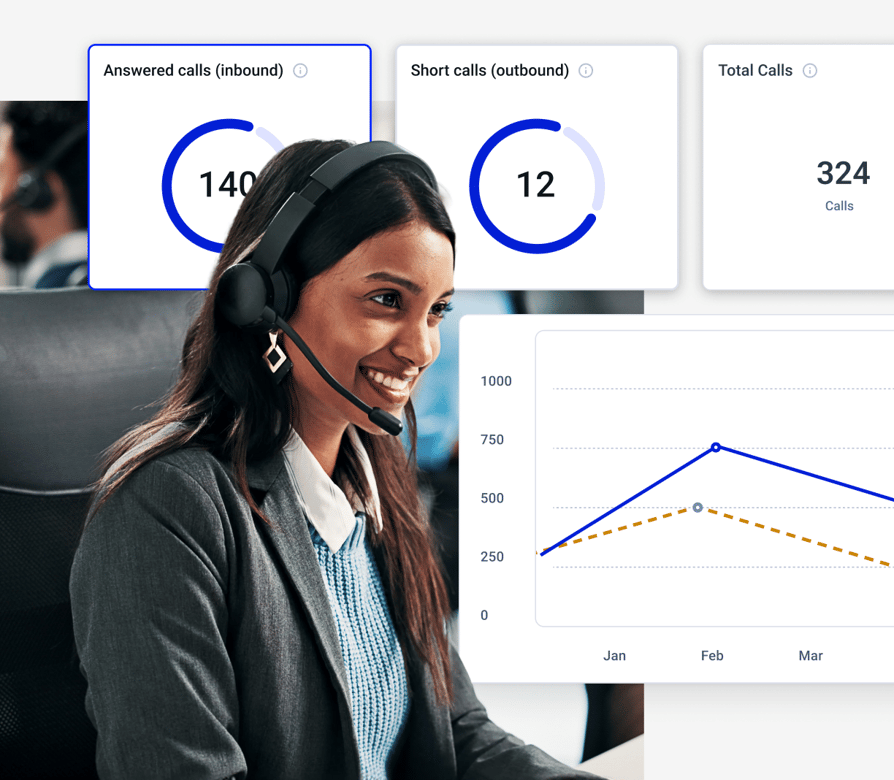
Wallboards display live performance data so agents and managers can track critical metrics in real time, and react accordingly. With Wallboards, Admins can:
- 01Monitor live call activity in real time.
- 02Identify performance trends and potential issues as they arise.
- 03Drive team accountability by displaying metrics openly.
- 04Share insights externally with public sharing options.
How to Set Up a Call Center Wallboard
- 01Open the Wallboard tab. It's in CloudTalk Analytics and available to admins.
- 02Choose your widgets. Click Edit widgets, then use + and – to add or remove metrics, tables and table columns. The first column of each table stays fixed.
- 03Set your filters. Direction, group, agent and time frame.
- 04Put it on a screen. Open it in any browser and go full screen. The layout resizes to fit the screen.
- 05Share it outside CloudTalk. Click Share publicly to get a link. Limit it to specific IP addresses, switch it off, or regenerate it to cut access.
Wallboard Configuration
What to Display on a Wallboard
A CloudTalk wallboard holds two kinds of widget: metrics and tables. A metric is a single live number, such as how many callers are waiting. A table lists the calls or agents behind that number. Waiting Queue (metric) shows 4 callers holding; the Calls in Queue table lists each of them, how long they've waited and which group they're waiting for.
Start With Four Metrics
Twelve metrics are available. Start with four and add more only when someone needs them. Too many numbers becomes clutter.
- 01Calls in Queue – Every caller currently waiting, how long each has waited, the agent they're assigned to if already routed, and the group they're waiting for. The detail behind Waiting Queue.
- 02Agent Status – Each agent's name, groups, current status (online, on a call, on a break, offline), time in that status, last call and calls handled. Shows which agents are free, not just how many are online.
- 03Active Calls – Which agents are on a call, who they're talking to, and for how long.
- 04Group Status – Agents per group, calls in progress, queue size, and missed vs answered calls. Shows which group is falling behind while another has spare capacity.
Abandonment Rate, Average Waiting Time and the other metrics are there when you need them. Average Handle Time, first call resolution and CSAT aren't wallboard metrics. Track them in Analytics.
Then Add the Tables that Explain the Metrics
- 01Calls in Queue – Every caller currently waiting, how long each has waited, the agent they're assigned to if already routed, and the group they're waiting for. The detail behind Waiting Queue.
- 02Agent Status – Each agent's name, groups, current status (online, on a call, on a break, offline), time in that status, last call and calls handled. Shows which agents are free, not just how many are online.
- 03Active Calls – Which agents are on a call, who they're talking to, and for how long.
- 04Group Status – Agents per group, calls in progress, queue size, and missed vs answered calls. Shows which group is falling behind while another has spare capacity.
You do not need signage hardware, a separate display licence or an IT project. If the screen has a browser, it can show a wallboard.
Benefits of Wallboard
Optimize Performance with
Real-Time Insights
Make Fast Decisions
With live data on display, you can spot issues instantly—whether it’s rising hold times or a surge in abandoned calls. Teams can make quick decisions and manage challenges in real time.
Empower Agents
Displaying key performance indicators fosters a culture of transparency and accountability. This helps agents stay engaged, meet targets, and even encourage healthy competition.
Improve Customer Service
With key data always in sight, call center teams can prioritize urgent issues, optimize workloads, and minimize wait times. This leads to faster resolutions and higher customer satisfaction.
Features
Other features you might like

Real-Time Dashboard
Monitor agent or group activity in real time, from phone calls and performance metrics to their general availability.
Learn more about Real-Time Dashboard
Agent Reporting
Track your agents’ performance directly in CloudTalk and optimize for the best customer experience possible.
Learn more about Agent Reporting
Group Reporting
Give your managers full visibility over their team’s performance, and the tools to identify what, when and how to improve.
Learn more about Group Reporting
Analytics
Access centralized data on your team’s performance, and use it to optimize operations, cut costs, and close more deals.
Learn more about AnalyticsWe’ve helped thousands of global companies
Case studies featuring customers who are building faster.

Global Sales Engine Powered by Connected Conversations
“CloudTalk’s AI transcripts and analytics make it easier to track talk ratios, discovery depth, and regional performance—all without requiring formal training to get started.”

Revolutionizing Revolut’s Efficiency and Saving 40+ Hours
"Thanks to CloudTalk’s reliability, we could improve sales teams’ performance and close more deals than we could have ever imagined."

Increasing productivity for 200 customer support agents
"With CloudTalk's Analytics I now get to see every step of the way. We can find discrepancies and gain a much better understanding of our teams."

Delivering success for Glovo’s customer support team
"CloudTalk improved our team's cost and efficiency. The script feature allows us to lead the calls in a much more systematic way."

Ready to get started?
Join over 5,500+ modern companies that already trust CloudTalk to have MORE and BETTER calls.
Wallboard FAQs
A call center wallboard is a screen showing live queue and performance data, usually mounted where the whole team can see it. It updates as calls arrive, so supervisors can react during the shift rather than reading about it the next morning.
A wallboard is a live, always-visible display built for a whole team to glance at, usually on a large screen. A dashboard is an interactive tool one person works in, used to dig into performance trends after the fact. Wallboards answer "what is happening right now"; dashboards answer "what happened last month".
Start with four: Service Level, Waiting Queue, Max Waiting Time and Agents Online. Those four tell a supervisor whether to step in right now. CloudTalk gives you twelve metrics in total, but a board showing all twelve stops being read. Add a fifth only when somebody asks for it by name.
Service level, average handle time, first call resolution and call abandonment rate. Customer satisfaction is usually counted as a fifth. For a wallboard, service level and abandonment are the two worth showing live. The others are better reviewed weekly in call center analytics than watched in real time.
The 80/20 rule is the most common service level target: answer 80% of calls within 20 seconds. It is a convention rather than a standard, and plenty of teams run 90/15 or 80/30 depending on how costly a wait is to them. A wallboard is where you watch it, because service level is only useful while you can still do something about it.
Yes. In edit mode you add or remove metrics and table columns, and choose which tables appear at all. Two things worth knowing before you plan around it: editing is an Admin permission, and each company has one shared wallboard configuration, so a change updates the board everyone sees. Separate wallboards per team are not currently supported.
No. A CloudTalk wallboard runs in a browser and resizes to whatever screen it lands on, so any TV, monitor or projector that can open a web page will display it. Teams wanting a permanent screen usually leave a mini PC or media stick connected behind the TV. There is no signage hardware and no separate display licence.
Yes. You can generate a public link that shows the live board to anyone, without giving them a CloudTalk seat. Access can be limited to specific IP addresses, switched off at any time, or reset by regenerating the link. It is how agencies and outsourced teams give a client visibility without adding users.
Mostly by removing the lag between something going wrong and somebody noticing. Agents can see the queue building rather than being told about it afterwards, and supervisors can move people before the abandonment rate climbs. The Agent Status table also makes time-in-status visible, which is useful for coaching and uncomfortable if used for surveillance.


Hello 👋 My name is Emma. Still have questions?
Can’t find the answer you’re looking for? Please chat to our friendly team.